

English: 3D Pipeline German: 3D-Pipeline, 3D-Workflow
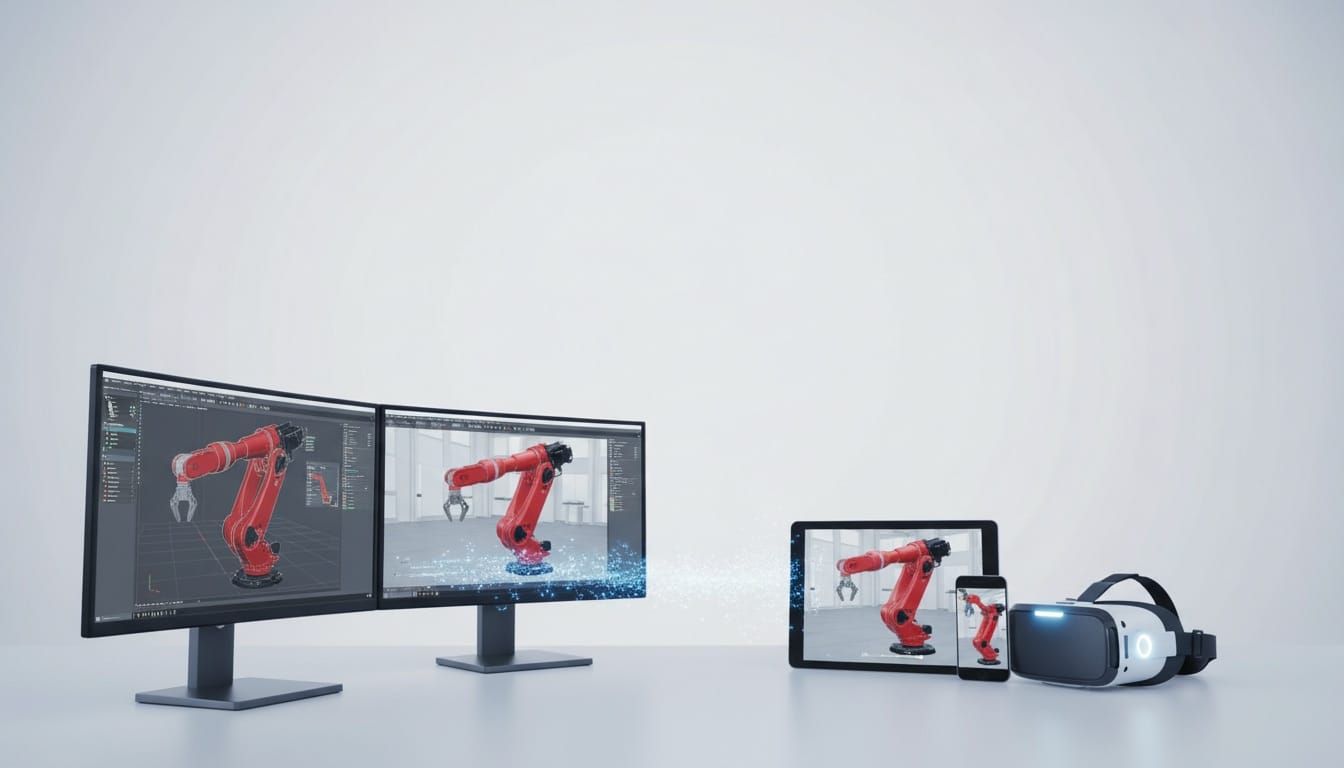
Definition: The 3D pipeline is the systematic workflow that converts CAD design data into interactive 3D visualizations for different output channels, such as web, mobile, AR, VR and kiosk systems.
In B2B mechanical engineering, the pipeline has several phases: CAD export, geometry conversion, polygon optimization, texturing, material setup, scene assembly and rendering. Each phase transforms the data step by step: from precise technical models (millions of polygons, NURBS surfaces) to high-performance visualization models (thousands of polygons, optimized textures).
A well-established 3D pipeline lets you reuse existing CAD data, iterate quickly when products change, keep consistent quality across all channels and scale production for large product portfolios.
The Phases of the 3D Pipeline in Mechanical Engineering
Phase 1: CAD Design and Engineering
Starting point: Technical design in CAD software (SOLIDWORKS, CATIA, Siemens NX, Inventor, Creo). Here, engineers model machines with the highest precision: exact dimensions, tolerances, assemblies and technical details.
CAD data format: Usually parametric models with NURBS surfaces, constraints and a history tree. File formats: .sldprt/.sldasm (SOLIDWORKS), .CATPart/.CATProduct (CATIA), native formats or neutral exchange formats.
Aspects that are relevant for visualization: - Part hierarchy and assembly structure - Material definitions and surface properties - Components that can be animated (doors, flaps, moving parts) - Layer structures and configurations
Phase 2: CAD Export and Conversion
Export from CAD: Conversion of parametric geometry into a polygon mesh. Common export formats:
- STEP (.step/.stp): ISO standard, good quality, large files
- IGES (.iges/.igs): Older standard, wide compatibility
- OBJ (.obj): Simple polygon format, loses the assembly structure
- FBX (.fbx): Autodesk format with materials and hierarchies
- STL (.stl): For 3D printing, geometry only without colors
Export settings are critical: - Tessellation quality (how finely curves are approximated) - Units are kept (mm, cm, m) - Hierarchy is kept (assembly structure) - Material assignment
Conversion challenges: - CAD uses NURBS (mathematical curves), visualization uses polygons - Parametric information is lost during export - Very high polygon counts (often millions of triangles) - Complex part hierarchies with hundreds of components
Phase 3: Polygon Optimization and Mesh Processing
Problem: CAD exports have too many polygons for real-time rendering. A machine with 5 million polygons is too heavy for web, mobile and AR.
Optimization techniques:
Polygon reduction (decimation): - Algorithms reduce the polygon count without visible quality loss - Target per channel: web 50,000-200,000, VR 200,000-500,000, offline rendering 1-5 million - Tools: Blender, Maya, specialized decimation software - Balance between file size and visual quality
Mesh cleaning: - Remove non-manifold geometry - Merge duplicate vertices - Correct inverted normals - Close holes in the geometry
LOD generation (level of detail): - Several versions with different complexity - LOD 0 (high): close-up view, high polygon count - LOD 1 (medium): medium distance, reduced - LOD 2 (low): far distance, strongly reduced - Automatic switch based on the camera distance
UV unwrapping: - "Unwrapping" the 3D surface into 2D for textures - Good UVs are critical for high-quality textures - Minimize distortion - Efficient UV use (little wasted space)
Phase 4: Texturing and Material Setup
Texture creation:
PBR materials (physically based rendering): Modern visualization uses PBR for realistic materials:
- Albedo/Base Color: Base color without lighting
- Metalness: Is the material metallic? (0=no, 1=yes)
- Roughness: Surface roughness (0=mirror-like, 1=matte)
- Normal Map: Simulates surface details without polygons
- Ambient Occlusion (AO): Shadows in recesses
Texture sources:
- CAD materials as a starting point
- Photographic references of real materials
- Procedurally generated textures
- Hand-painted details for special areas
Texture baking:
Precalculation of complex effects into textures:
- Bake ambient occlusion ("bake" shadows into textures)
- Generate normal maps from high-poly models
- Lightmaps for static lighting
Texture optimization:
- Resolution that fits the channel (web 1K-2K, desktop 2K-4K)
- Texture compression (DXT, ASTC, Basis Universal)
- Texture atlases (several objects share one texture)
- Mipmaps (precalculated smaller versions)
Phase 5: Scene Assembly and Setup
Scene composition:
- Place machines in 3D space
- Define camera positions (standard views)
- Set the correct scale and units
- Set pivot points for rotation
Prepare interactivity:
- Named animations (open a door, move a flap)
- Configurable variants (colors, options)
- Hotspots for additional information
- Exploded views for technical documentation
Lighting:
- Three-point lighting as the basis
- Image-based lighting (IBL) for realistic reflections
- Shadow settings
- Environment maps for the surroundings
Optimizations:
- Occlusion culling setup (hide parts that are not visible)
- Fewer draw calls through merged materials
- Instancing for repeated components (screws, elements)
Phase 6: Export and Deployment
Export to the target format:
Web (glTF/GLB):
- glTF 2.0 is the standard for web 3D
- GLB = binary glTF (more compact)
- Includes geometry, materials, textures and animations
- Usable directly in WebGL/WebGPU
Unity/Unreal (FBX, USD):
- FBX for game engines
- USD (Universal Scene Description) is used more and more
- Hierarchy and animations are kept
Mobile AR (USDZ for iOS, glTF for Android):
- USDZ for ARKit (iOS)
- glTF for ARCore (Android)
- Requires especially aggressive polygon reduction
Deployment:
- Upload to a CDN for web delivery
- Integration into AR/VR apps
- Delivery to kiosk systems
- CMS integration for easy content management
Pipeline Variants: Automated vs. Manual
Manual pipeline (artist-driven):
Workflow: 3D artists do each step by hand
- Export from CAD
- Optimize manually in Blender/Maya
- Texture by hand
- Adapt individually for each channel
Advantages:
- Highest possible quality
- Artistic control
- Perfect for hero products and marketing
Disadvantages:
- Time-consuming (days to weeks per model)
- Expensive for large product portfolios
- Difficult to scale
- Updates require manual rework
Best for: A small number of premium products, marketing visualizations, hero assets
Automated pipeline (tool-driven):
Workflow: Scripts and tools automate the steps
- Automatic CAD export (batch processing)
- Rule-based polygon reduction
- Procedural material mapping
- Automatic LOD generation
- Multi-target export (web, AR, VR in parallel)
Advantages:
- Scalable for hundreds of models
- Consistent quality
- Fast iteration when CAD changes
- Cost-efficient for large portfolios
Disadvantages:
- Higher initial setup costs
- Quality does not reach the manual optimum
- Requires technical setup and maintenance
- Cannot cover all special cases
Best for: Large product catalogs, frequent updates, multiple channels
Hybrid approach (recommended for B2B): Automation for the base pipeline, manual post-processing for important products. 80% automated, 20% artistic refinement where it matters.
Challenges and Solutions
⚠️ Large assemblies: Machines with thousands of individual parts overload the pipeline.
✅ Solution: Smart simplification: merge small screws, remove unimportant details, use instancing.
⚠️ CAD updates: Engineering changes the design, and the visualization becomes outdated.
✅ Solution: Automated re-import pipeline, template-based material mapping, version management.
⚠️ Multi-channel requirements: The same model for web (low), desktop (medium), VR (high) and marketing (ultra).
✅ Solution: An LOD system that automatically generates different quality levels from a master model.
⚠️ Materials and textures: CAD materials are technical, not photorealistic.
✅ Solution: Build material libraries and mapping rules (CAD material "steel" → PBR steel texture).
⚠️ File sizes: High-quality models with textures are large (50-500 MB).
✅ Solution: Aggressive compression, progressive loading, texture streaming, CDN delivery.
⚠️ Performance budget: Different devices have different performance.
✅ Solution: Adaptive quality, device-based LOD switching, performance profiling.
Frequently Asked Questions (FAQ)
How long does it take to convert a CAD model?
This depends strongly on the complexity and the level of automation.
- Manual: Simple machine 2-5 days, complex production line 2-4 weeks (including optimization, texturing and testing).
- Automated: Minutes to hours for the base conversion, plus 1-3 days of setup per product family.
- Hybrid: 1-3 days per model with an established pipeline. Initial pipeline development: an investment of 4-12 weeks that pays off from approx. 10-20 models. With frequent updates (monthly), automation almost always has a positive ROI.
Can you use CAD data directly without conversion?
No, for several reasons:
1) CAD uses NURBS mathematics, visualization uses polygons,
2) CAD models have millions of polygons (too many for real time),
3) CAD materials are technical, not visual,
4) CAD contains internal design details (threads, hidden parts) that are not relevant for visualization. Direct use would cause extremely poor performance (1-2 FPS instead of 60 FPS). Conversion and optimization are necessary. But when the process is established, you can repeat it for all future models.
What is the difference between a real-time and an offline rendering pipeline?
- Real-time pipeline (for web, AR, VR): The focus is on performance: low polygon counts (50,000-500,000), compressed textures (1K-2K), simple materials, baking of complex effects. Target: 30-60 FPS.
- Offline pipeline (for marketing videos and images): The focus is on quality: high polygon counts (millions), high-resolution textures (4K-8K), physically correct materials, ray tracing. Rendering takes minutes to hours per image. B2B companies often need both: real time for interactive configurators, offline for brochures and videos.
How do you handle multi-channel distribution?
Best practice: the master model approach. You create one high-quality master model (after phases 3-4). From it, the pipeline automatically generates different versions:
- Web version: 100,000 polygons, 1K textures, glTF,
- Desktop version: 300,000 polygons, 2K textures,
- Mobile AR: 50,000 polygons, 512-1K textures, USDZ/glTF,
- VR: 400,000 polygons, 2K textures, optimized for stereo,
- Offline rendering: millions of polygons, 4K+ textures. Advantage: You prepare the model once and export it automatically for all channels. CAD updates trigger an automatic regeneration of all versions.
How much does it cost to build a 3D pipeline?
- One-time costs: Pipeline development €20,000-80,000 (depends on the level of automation, the tools and the complexity). This includes tool selection, workflow definition, script development, template creation and testing.
- Costs per model: Manual €2,000-8,000 per model (artist time). Automated €200-1,000 per model (mostly computing time and QA). Hybrid €800-3,000 (automated base + manual refinement).
- Running costs: Software licenses (Blender free, Maya/3ds Max €2,000-4,000 per year), cloud rendering, storage, staff.
- Break-even: From approx. 15-30 models, an automated pipeline pays off compared to purely manual production.
Industry Standards and Technologies
glTF 2.0 ISO-standardized 3D format for web and real-time applications. Supports PBR materials, animations and compact files. Source: https://www.khronos.org/gltf/
USD (Universal Scene Description) Pixar's open-source format for complex 3D scenes, more and more established as a pipeline standard. Source: https://openusd.org/
FBX Autodesk's exchange format for 3D assets between DCC (digital content creation) tools. Source: https://www.autodesk.com/products/fbx/overview
Draco Compression Google's compression algorithm for 3D meshes, reduces file size by 90%+. Source: https://google.github.io/draco/
Basis Universal Universal texture compression format for the web, fast GPU decompression. Source: https://github.com/BinomialLLC/basis_universal
STEP/IGES ISO standards for CAD data exchange, widely used in mechanical engineering. Source: https://www.iso.org/standard/63141.html
Related Topics
3D technologies: - 3D model – Digital 3D representation - Polygon mesh – Geometric basis of 3D models - Level of detail (LOD) – Several levels of detail - PBR materials – Physically based rendering - UV mapping – Texture coordinates
Pipeline steps: - CAD conversion – From design to visualization - Polygon optimization – Reduction for performance - Texture baking – Precalculation into textures - Material setup – PBR materials - Real-time rendering – Display in real time
Formats: - glTF – Web 3D standard - FBX – DCC exchange format - USD – Scene description format - STEP – CAD exchange format - USDZ – Apple's AR format
Applications: - Product visualization – 3D product presentation - AR visualization – Mobile 3D display - VR applications – Immersive visualization - Web 3D viewers – Browser-based display - Product configurators – Interactive configuration
Tools and software: - Blender – Open-source 3D software - Maya/3ds Max – Professional DCC tools - Substance Painter – Texturing - SOLIDWORKS – CAD software - Unity/Unreal – Real-time engines
Optimization: - Texture compression – Reduce file sizes - Draw call reduction – Improve performance - Occlusion culling – Hide what is not visible - LOD switching – Dynamic quality adjustment - Instancing – Optimize repeated geometry


